Thursday, February 15, 2018

I'm Back! And Google Certified!


It's been forever, but I'm back.  

I even have a new Bitmoji.

There's nothing like a week at TCEA's annual conference to get me fired up about integrating technology in my classroom.  Well, honestly, with technology with everything I do.  I hate wasting time and so any tools that will help me be more efficient make me Happy, Happy, Happy! 

I haven't been to a TCEA conference in a few years, but this year I got to go with some of my awesome co-workers.  We even presented a session on G Suite in the classroom.  Though I have terrible stage fright it was very cool and rewarding to present to a room full of teachers that want to make their school tech integration as awesome as LJH.  We also got to sit in as a "panel" for our Director of Technology Integration.  While attending sessions, I learned more features and uses for G Suite, about a few websites I have never used, and got fired up about trying some of these things in my classroom.

Something that kept nagging at me after I was home from Austin was Google Educator Certification.  A few years ago, I took and passed all the Google Certified Trainer tests.  However, because I didn't have enough training opportunities, I didn't follow through with getting certified.  So I decided that I was going to become a Google Certified Educator and eventually a Google Certified Innovator and/or Trainer.  I looked at the Google Education Training Center to see what the certification test included.  I decided to take my chances and register for the Level One test without studying.  (not recommended unless you use G Suite everyday).  It took me about an hour and forty five minutes to complete.  A few minutes later, I received an email that said I PASSED.  Yeah!!!  So I was pretty pumped and decided to go for Level Two.  I registered and paid, then went to bed.  Good thing you have seven days to take the test, because for the next few days I was tortured with an awful headache.  I did take a little time to look over a test checklist I found on Pinterest.  I looked up a few things I didn't know about (like Google Lit Tours).   I took the plunge last night (Happy Valentine's Day) and started the test (note you can't pause once you start).  This one took almost the full three hours that they allow, but I PASSED!  


So now I can say that I am a 

Google Certified Educator 
and proudly display my new badges.


Now, for my next goals...

  1. Write at least one GT Lion Geek blog post a month.  
  2. Teach my students how to build ePortfolios.


Image result for quotes about goals michael phelps
Photo Credit: Goalcast

Wednesday, December 7, 2016

Stickers in Flubaroo!!!


Grading, Grading, Grading...  Let's just say that grading assignments is not one of my favorite things on earth, but technology sure helps me through it.  One of my favorite tools for grading is Flubaroo and today (well actually a week ago) it just got even better.  Bear with me as I geek out here. 


Include digital stickers when sharing grades in Flubaroo!!!

Click here to read Flubaroo News and learn how.

As if adding digital stickers isn't enough, it gets better.  You can add your own stickers.  Click here to find out how.  It's super easy!

Google Drawing + Bitmoji = Super cool digital stickers!!!

When I read that you could add your own stickers (PNG or JPG), I immediately thought that I had to use Bitmoji to create stickers.  It's a simple process!

  1. Add the Bitmoji extension to Chrome (surely you already have a Bitmoji account, but if not they are super easy and fun to set up).
  2. Create a new Google Drawing (you will want to do this in your Flubaroo Stickers folder - see link above).
  3. Click on Bitmoji icon, search for your Bitmoji, and then drag it to your Google Drawing.
  4. Resize/Crop 
  5. Download as a PNG/JPEG (File>Download as>PNG or JPEG)
  6. The file should drop to the bottom of your screen.  Drag it into your Flubaroo Stickers folder.
  7. You're done!  Now the sticker will appear when you are getting ready to share grades.  

Now back to grading all those assignments I didn't create using Google Forms. 

Tuesday, November 15, 2016


Christmas for Classmates 

With Thanksgiving coming up, Cubs for Christ (CfC) is gearing up for our Annual Christmas for Classmates collection.  If you are new to LJH, CfCm is where we collect gifts and/or money to buy gifts for LJH students that may not get presents otherwise.  There are several organizations on campus that help us out and each year we help about 25 LJH students and we hope to do the same this year. If you know of any students in need, please click here to add them to our list.

There are a couple of ways you can help.

  1. Buy a T-shirt or Hoodie - We only have two days left to sell as many shirts/hoodies as possible.  Click here to order yours today.

  1. “Adopt” a student - You will be given the student’s wish list for ideas on what to buy.  You can buy the items yourself or partner up with others.  You do not have to buy all the items on the wish lists (some of these kids dream big).  We do ask that you buy at least one hoodie/jacket.  After purchasing the gifts, we ask you gift wrap the items.  CfC will provide a Bible for each student.  We will also try to make sure that each student gets a bath/deodorant gift set.  When shopping please keep in mind that most of these students will have to ride the bus home with their gifts.  Cubs for Christ will supply 2 reusable shopping bags for your wrapped items so that it is easier for the student to carry home.  (For bussing purposes, we need items to fit in the bags).  

  1. Donate money - If you would like to help but don’t have time to go shopping, you can donate and we will do the shopping for you. Checks can be made payable to Cubs for Christ.

  1. Donate generic gifts - If you’re out and about and find a great deal on items that JH kids would like, purchase and donate them.  (There are a lot of good deals on Black Friday).  We will sort and distribute them to students on our list.

  1. Pray - If you are a praying person, please pray for this project.  There are several needy kids at our school and we want to help as many as possible.
From now until Dec 12, we will collect generic boy and generic girl items (that most JH kids would like), bibles, bath sets, and monetary donations.  With the monetary donations, we will buy items from student wish lists.  Hypothetically, each student on our list will receive a bath set, a bible, a hoodie/jacket, a small gift (boy/girl), and maybe a few other goodies like candy canes.  

We will bag these up and hand them out before the students leave on Friday, December 16.
If you would like to make any type of donation just let me know so that I can start to get an idea of what we will have.
My email address is sbmcfarlain@livingstonisd.com.
Thanks for your help and for always caring for LJH Students!

Friday, September 16, 2016

Publishing Google Docs, Slides, and Sheets to the Web

How to Publish Google Docs, Slides, and Sheets to the Web!


Hey Guys,
I didn't realize just how long it has been since I've posted on my blog!  I hope to do a better job at taking time to share some cool tech and GT things with you, starting with this super short video on how to publish a Google stuff to the web.  I use this feature a lot in my classroom and now my students are also.  (In fact, this video is actually for them).  One goal I have this year is for my students to learn to share and publish their works.  Today, they had their first assignment that includes publishing their works and sharing the link with me.  If they can do it, I know you can too!


And just in case you want to read the instructions, I am including the link to my Slides presentation.

Click HERE to view my Slides presentation.

"If you want something you've never had, then you've got to do something you've never done."  Thomas Jefferson

Monday, October 12, 2015

Chromebook Offline


Don't have internet at home? Is your connection at school lagging?  Don't freak out.  You can still do many things when your Chromebook is offline.  Most assignments require you to create a document, drawing, or presentation in your Drive. You can set up your Drive to work offline (How to Video) and there are apps that also work offline (Go to the Webstore, click offline on the left.  Then you will see a collection of apps and extensions that work offline).

To save webpages for offline viewing:

Click menu bar
Select Print
Change Destination to "Save to Drive"

This will save the entire webpage as a document that you can view in your Drive (if you have set up offline in your settings).


Google Support also offers these ideas:

https://support.google.com/chromebook/answer/3214688?hl=en
Sources:
"Use Your Chromebook Offline." - Chromebook Help. N.p., n.d. Web. 12 Oct. 2015.

Friday, October 2, 2015

Chromebook Printing


Though we are doing our best to go "paperless", there are times when you just have to print.  Printing from the Chromebook can be frustrating, unless you follow these steps.  Please take note that you must use a laptop or PC that is connected to the printer.  Chromebooks do not support drivers, so you can not just plug the printer cord into them.

Go to Google Support for more information.


Shout out to Maddie R. for suggesting this blog post.  It is shorter than most, but I hope you find it beneficial.

Sources:
"Connect Your Printer to Google Cloud Print." - Chrome Help. N.p., n.d. Web. 02 Oct. 2015.

Thursday, September 24, 2015

Make Suggestions and Share Your Ideas

So today, I totally geeked out when I got this email...

I know it may seem stupid to get excited about an email that was probably sent to a ton of people, but calendar option to classroom was something I really wanted my students to have.  Honestly, I didn't really think anything would come from me suggesting this.  I've read plenty of discussion boards where people are complaining about features or lack of features.  But apparently, if you make suggestions/enter feedback/share ideas, Google listens.  Just like every other aspect of life, you have to do it correctly.  So now, I'm ready to make all kinds of suggestions.  In fact, I made 3 on GoGuardian today. LOL.  I told my students that I might just solve all the world's problems, one suggestion or idea at a time.

If you don't like something about a program, think of a solution and submit it to the developers.  Who knows, they might just listen and grant your wish!


PS: The Calendar feature in Google Classroom is amazing!

Wednesday, August 19, 2015

Flubaroo!!!

In the last few days, I've started thinking about my classroom, classroom management, and of course, staying paperless in my class. Our district recently went Google and this coming school year, students will have access to Chromebooks (grades 4th-12th).  So not only will teachers and students have access to all the cool Google tools and apps, but the students will also have access to devices!  With that in mind, I've decided to write a few posts about my favorites.

Flubaroo!!!  

Nearly all of my teacher friends complain about the time it takes to grade papers.  With Flubaroo, you can create self-grading quizzes, tests, etc.  There aren't many apps or add-ons that I am willing to pay for, but I would pay for this one.... Wait, did I mention that it is FREE???

Steps to Creating Self Grading Assignments:


1. Create a Google form with your questions.
  • Though my first question is "Student Name", I always check "automatically collect email address" because Flubaroo will email the students their grades (and sometimes they mistype their email addresses).
  • Try to have a plan of what questions you are going to ask before you start creating your form.  If you re-arrange the questions, your Google Sheet (with responses) will be all out of order.  You can redirect your responses easily though if you forget.
2.  Complete the form.
  • Click on "View live form". 
  • Take the quiz (Type Teacher Key as your name).  This will come in handy later. 

3. Click "Share" to get the link to your form.
  • I share this link on Google Classroom or email it directly to the students.
4. Once a few students have completed the form, go to your form and click "View Responses".  

  • A Google Sheet should open with yours and your students' responses.
5.  Click on Add-ons>get add-ons to download Flubaroo.
  • Flubaroo is so popular that it is usually "suggested", but you may have to search for it.
6.  Enable Flubaroo.  Click the little arrow to the side, then click "Enable Flubaroo".  

7. Now you are ready to grade!

Click Flubaroo (from add-on menu), then click Grade assignment.
  • You will now go through a series of questions about your preferences.
    • Which questions identify students and which ones are to be worth points (I always leave it at one point each, but you may want some questions to be worth more)?
    • Which response to use to grade (this is where you select "teacher key" that you created)?
  • Now another sheet with grades will added to the original grade sheet.  From here you can:
      • Decide if you want grades emailed to students - YES!  They love this.
      • Decide if you want the answer key emailed with student grades.  This one is tricky, because you don't want absent students getting answers.  I usually select yes, but then I don't "grade" them until I know that absent kids have had a chance to complete the form.  
      • Export grades for entering into gradebook. (I usually write them in my paper gradebook)
    NEW FEATURE: Auto-grade!!!  In advanced settings you can enable "autograde" and Flubaroo will grade assignments and email students as students submit forms!!!  (Just be sure to go back and look at the grades).

    Check out the Tackk I made for Google Academy for more help: Self Grading Forms Tackk


    Thursday, May 14, 2015

    To my 8th graders...

    summertime-blues


    Summer is upon us.  Most teachers and students are ready for summer.  Teachers are trying to finish up crazy to-do lists, while students are frantically turning in late work.  As I was looking through my last bit of lesson plans and trying to figure out what else I "need" my students to know before they leave, I realized something...  My 8th Graders are going the high school next year.  They won't be in my class driving me crazy or pulling at my heartstrings.  


    You see, I get these guys when they enter 6th grade.  I like to call my 6th graders babies.  They really are in terms of being Jr. High students (and their breakfast in the classroom behavior and manners).  I spend three years with them and they become my children.  I have watched these students laugh, talk too much, and cry.  They have made me laugh, talk too much, and cry.  The truth is, I will miss them more than I can put into words.  Even though I know they will do great in high school, I worry about them.  


    Ok, ok... Enough of the mushy stuff.  You 8th graders are probably reading this and thinking either "Wow, I never knew she was such a softy" or "Who is this alien pretending to be Mrs. McFarlain".  It's true, I have a little bit of a soft side, but don't worry.  I'm not going to slack off on you.


    So here we go...


    To Jackson, Joshua, Gage, Destiny, Zane, Christian, Zavalla, Jacob, Katie, Coral, Jorge, and Marshall:
        
    /

    Love Yourself, Love Others.

    Respect Yourself, Respect Others.

    Dream Big, Work Harder.

    Create, explore, and investigate.

    Make History Everyday.

    Research and cite your sources.


    Go Big or Go Home.


    Go to Win, Win, Win,
    But if you don't, learn from your mistakes (Remember the Alamo, Remember Goliad)


    Always Shout "Remember the Alamo, Remember Goliad" when you read it.


    Don't trust what you read on the internet or what the media throws at you.


    GT is not the classes you take, it's who you are.


    You are Lion Country.


    Build others up.
                                                 
    Keep blogging.


    Good is the enemy of Great.


    Be Great.


    Never stop learning.


    Laugh... A lot.


    Remember each other - it's a jungle out there.


    You are responsible for your own learning and education.


    No talking means no talking.  Whispering is talking.


    Listen more than you talk and try not to interrupt others when they are talking.


    Life is not fair. There will be circumstances beyond your control, but you must persevere and be great, "After all, tomorrow is another day".


    Use your intelligence for Good not Evil!
    I expect to see big and important things from you in the future.


    Study - Being GT does not mean you know everything, part of being smart is knowing what you are dumb at.


    People do not like being corrected as much as you like to correct.
     
    Sometimes you have to go with the flow, other times, you have to fight the tide


    Burning effigies or using tar and feathers is probably not the best protest method.


    If you have to yell or talk over someone to prove your point, your point may not be that good.


    Practice writing in cursive (especially your signature).  


    Be careful what you post on social media.  Dirty laundry needs to go into the washing machine not posted online.  Colleges and employers check social media before references when looking at applicants.


    And one last thing to remember:


    I hope that you heard my voice as you read through these.  I hope that I taught you even more than what I listed.  I also hope that you noticed that most of my list had nothing to do with "history", but the things we learn as we live out history (and study others' history).  You are an amazing group of students.  Everyone of you possess a character and intelligence that is perfect for the works ahead of you.  I love you, even though you're "so weird".  (Not only did you hear me say "so weird", but you imagined my facial expression too.  Don't lie, you did).  :)


    Love Always,

    Mrs. McFarlain


    PS, Oliver and Amber, we miss you!

    Thursday, April 16, 2015

    Converting Worksheets to PDF

    So if you decide you want to use Notable PDF (see my post from yesterday), you will probably want an easy way to convert your worksheets to pdf files.

    These are the two options I use most. 


    1. Use classroom scanner.  My printer is a 3-in-1, so it is equipped to scan.  When I scan documents, I save them to pdf on my Google Drive.

    2. Use copy machine to scan to a flash drive.  This is actually my favorite option because it is faster than scanning with my printer.  You can do several pages (even a whole workbook if you want).  The copier can scan in black and white or color.  Click here for instructions on how to do this.  Remember, you will want to upload files from your flash drive to your Google Drive.

    Gavin says, "Did you get it?"


    Let me know if you have any questions or if you have any other quick options.


    Tuesday, April 14, 2015

    Notable PDF

    My new favorite Google app and extension!

    I don't know about you, but I hate spending time in the copy room.  I also have a lot of really good worksheets that I want to use. And if I do decide to re-type them in Google Docs, I certainly do not want students to have the ability to "edit" aka "delete/manipulate my work when I share the document with them.    For the past few months, I have felt that this has been a downfall of Google Classroom.  Don't get me wrong, I love that Google Classroom will make the students their own copy, but that still allows them to edit that document.  You can share a pdf, but they can't do anything with it unless they have a program that allows them to annotate pdf's.  I am sure there are several programs that will do this, but so far Notable PDF is my choice.


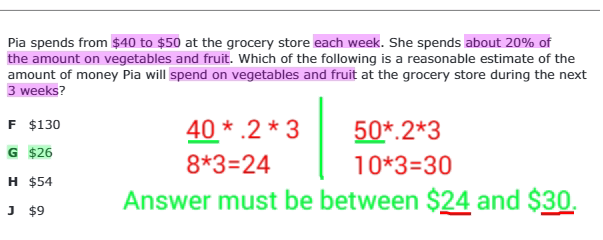
    I found Notable PDF while searching for a way to display our Mock STAAR test so that I could go over the questions with my students.  After I downloaded the app and extension I imported the PDF file of the Mock test.  Then I was able to annotate each question with available tools.  At this time I was still working with the Basic (FREE) version.  I was able to show students keywords, how to eliminate, and reason choices.  I also made the students find where they had previously learned the information from the question. (INB - Interactive Notebook).


    +

    As I was working through the questions, I thought how useful this would be with other worksheets and assignments (like labeling maps)!  I also thought that it would be great for teachers in any subject.  As a former Math teacher, I could see where this would be great for word problems.

    I did have a little scare...  


    I couldn't figure how to save and I had to leave to pick my son up.  After considering leaving my teacher computer on for the night and deciding that was a bad idea, I decided to click the dreaded X.  When I got home, I held my breath as I opened the document.  The PDF was clean...  NONE of the revisions were saved.  I was torn.  I loved what I was able to with the app, but if I couldn't save it really was no use to me.  I went to their website and decided to buy the premium version (so that I could draw, share, and save to drive).  I figured out (after paying), that all I had to do was import the PDF into the app/or use the extension to open it and a little pop screen would come up and ask what version I wanted to use.  Yes, one of those versions was the PDF with 268 annotations (The STAAR Test is LONG).  The good news is that I retrieved all of the annotations and learned how to save it.  I could have exported the version to a PDF and had it saved to my computer with the Basic (FREE) version if I would have been a little more patient.  I don't regret buying the Premium version though.  I like that Premium allows me to draw and save directly to drive.  There is also an option to collaborate, but I haven't tried that out yet.

    How I plan to use this app in the future... 

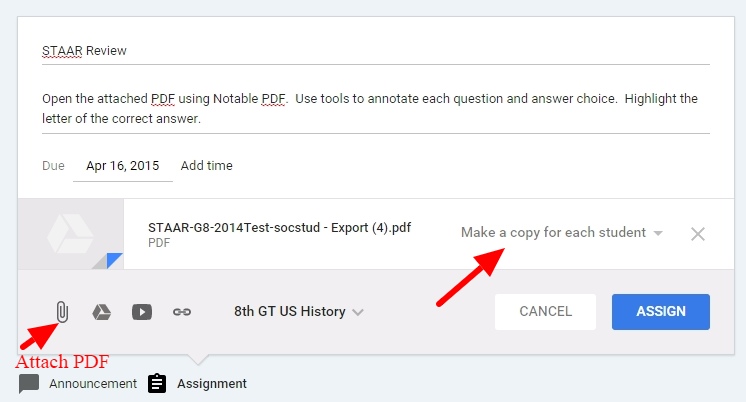
    I currently use Google Classroom to "announce" daily objectives and share assignments. Now when I can assign "worksheets" for the students to complete and turn into me.  When creating the assignment, I will attach the pdf and select "Make a copy for each student".  I would also include that they need export to a new pdf and save the file as "yourname worksheet name".  They would then turn in using Google Classroom.  (I haven't had a chance to have them try the "Turn it in" step, but if that doesn't work, I will have them email the pdf to me).

    Screenshot of my Google Classroom assignment.


    So... What do you think?  Is this something you could use in your class?  Comment ideas and questions below!